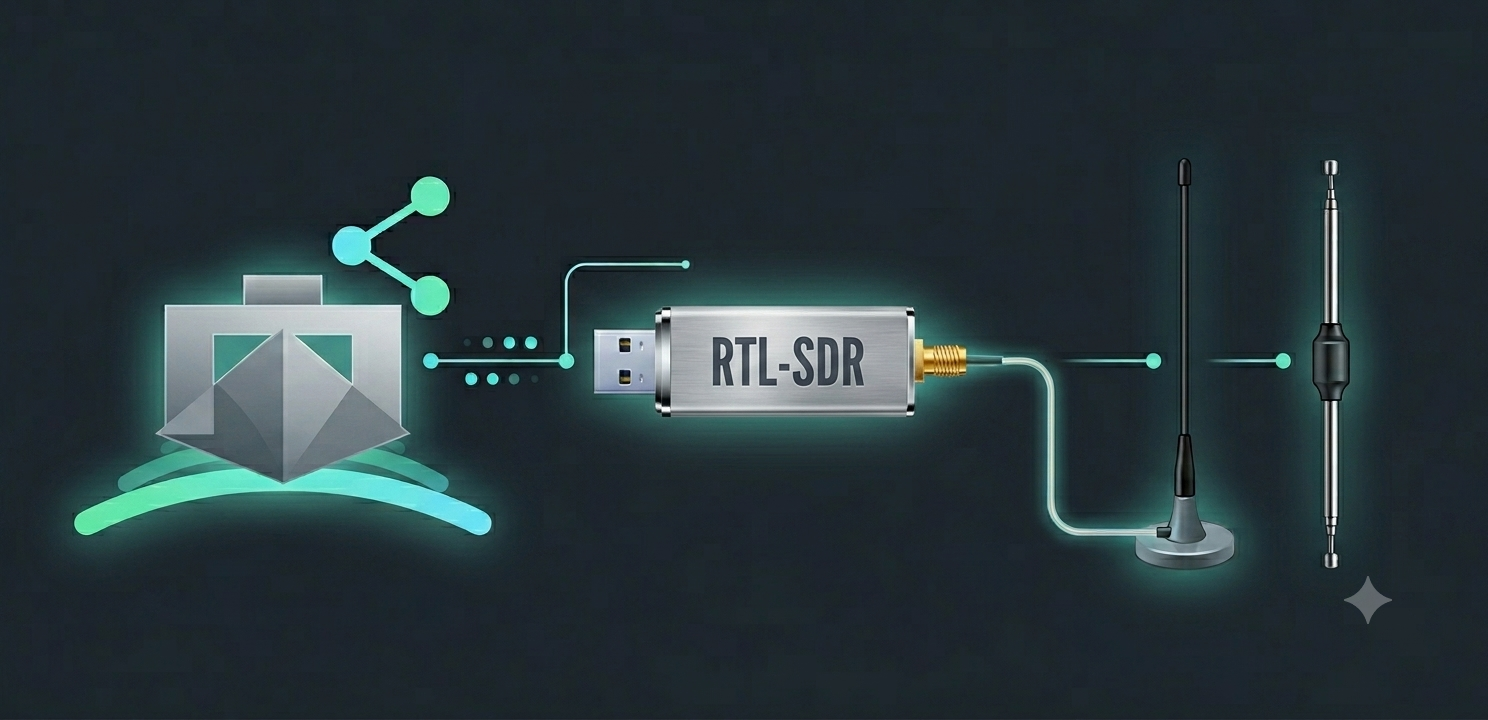
Android Marine AIS System
AIS Share + RTL AIS Driver
Turn a modern Android phone or tablet into a live dual-channel AIS receiver with elegant onboard sharing to charting apps over Wi-Fi.
Plug in an RTL-SDR dongle, press Play in AIS Share, and forward vessel targets to OpenCPN, Navionics Boating, Boat Beacon, and other NMEA 0183 compatible apps.
No cloud. No monthly fee. No dedicated marine black box required.
Dual-channel AIS UDP + TCP sharing GPS forwarding Polar Range Chart Unique Vessel Count v2.2.4
|
Reception Live AIS on both channelsReceives AIS traffic at 161.975 MHz and 162.025 MHz with an RTL-SDR dongle and forwards it live across your onboard network. |
|
Control Premium Android front endAIS Share gives you status badges, live output activity, Wi-Fi IP visibility, inline edits, charts, counters, and dark mode in one polished interface. |
|
Sharing Ready for chart appsShare AIS over up to 3 UDP outputs plus 1 TCP server, and optionally forward your own GPS position over UDP. |
On This Page
Why there are two apps
This system is intentionally split into two parts so each app can do one job well.
Free companion app
RTL AIS Driver
Handles the USB radio hardware, SDR tuning, and AIS decoding. AIS Share can start it automatically, so in normal use it mostly stays in the background.
Premium app layer
AIS Share
Shows live system status, message activity, chart-friendly outputs, and practical controls for onboard daily use.
Both apps must be installed. In daily use, AIS Share is the app you work with.
Features
AIS Share combines a polished Android AIS front end with the free RTL AIS Driver to create a practical RTL-SDR, Marine AIS, and NMEA workflow for tablets, phones, and onboard Wi-Fi networks.
Reception & analysis
- Dual-channel AIS reception on
161.975 MHzand162.025 MHz - Live message counters, unique vessel tracking, and message-type statistics
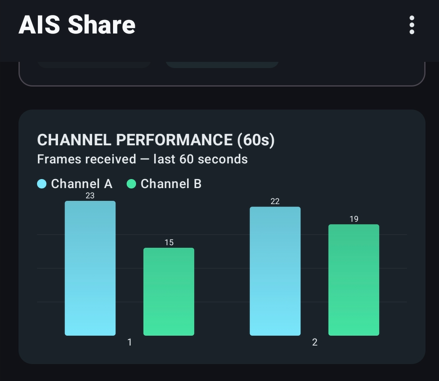
- 60-second Channel A/B bar chart for real-time frame activity
- 16-sector Reception Range Polar Chart with a 60-minute rolling window
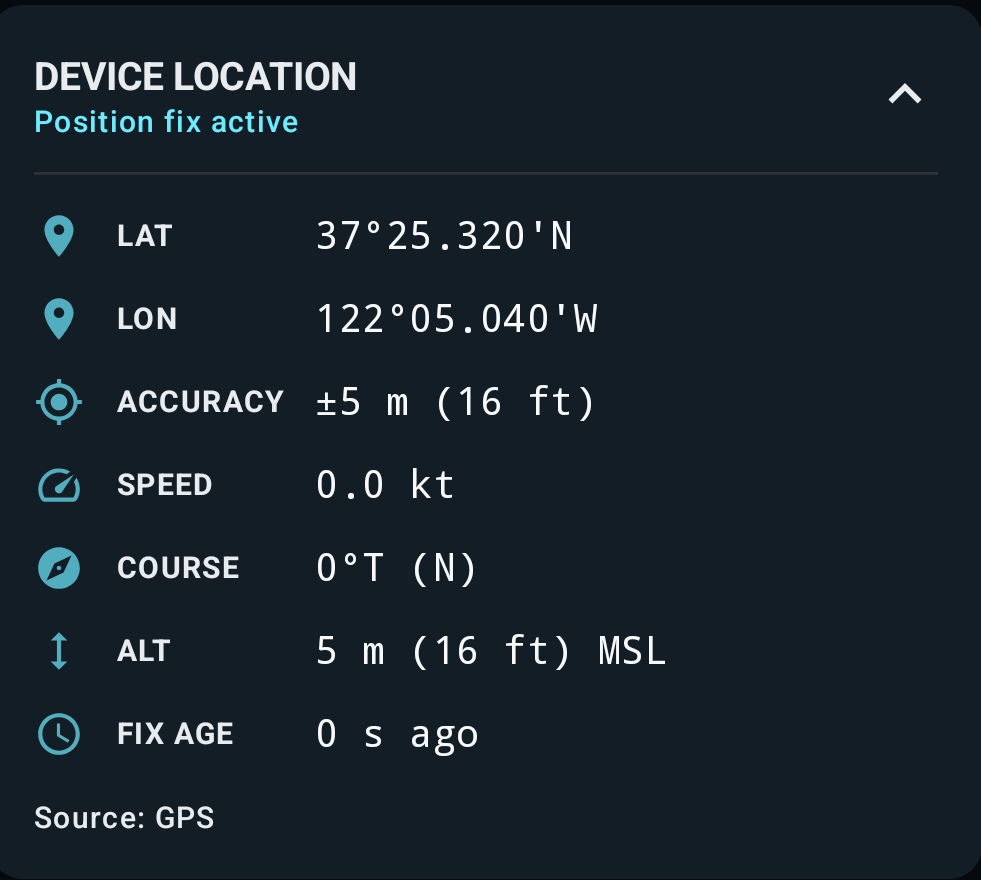
- Marine Location Info Card with DDM coordinates, SOG/COG, accuracy, and satellites
Networking & chart apps
- Up to 3 UDP outputs with default ports
10111,10112, and10113 - 1 TCP server on
10114for one client at a time - GPS sharing over UDP on
10140 - Works with OpenCPN, Navionics Boating, Boat Beacon, and other AIS over UDP / AIS over TCP apps
- Main screen always shows the current Wi-Fi IP for faster setup
Usability & reliability
- Material 3 Jetpack Compose interface with dark and light mode
- Foreground service designed for background use with battery-whitelist guidance
- Inline output editing from the main screen
- Simulation mode with 9 fixed vessels plus 1 custom-position vessel
- Internal driver-to-app IPC over UDP
10100, with collision avoidance if that port is busy
What’s New in v2.2.x
Recent releases focused on practical onboard usability: clearer GPS data, improved chart readability, and faster output editing while keeping the core AIS Receiver Android workflow stable.
v2.2.4
OutputQuickEditSheet now opens fully expanded so the Save button is immediately visible without dragging.
v2.2.3
Fixed Save button overlap with the navigation bar and made polar chart ring labels density-aware for cleaner rendering on different displays.
v2.2.2
Location Info Card now uses correct marine SOG and COG labels and removed the incorrect magnetic-heading sensor approach.
v2.2.1
Speed and course now show an em dash instead of misleading zeros when GPS has not provided those values yet.
v2.2.0
Added the in-app What’s New dialog and completed the Kotlin migration of MyBackgroundWorker.
v2.1.8
Added a unique vessel counter to the AIS Statistics card and renamed the main counters to Positions and Info.
v2.1.7
Added live satellite count in the Location Info Card plus an approximate-location warning for better troubleshooting.
v2.1.6
Introduced the Device Location Info Card on the main screen.
v2.1.5
Introduced the opt-in Reception Range Polar Chart for directional antenna performance analysis.
2026 hardware essentials
Affiliate note: As an Amazon Associate and AliExpress Affiliate, I may earn a small commission from qualifying purchases.
1. Device
Android phone or tablet
Use a recent Android device with USB-C OTG. Tablets work especially well if you want AIS Share visible next to your chart app.
2. Connection
USB-C OTG or powered hub
A good USB-C OTG adapter is essential. For longer onboard sessions, a powered USB-C hub keeps the dongle stable and reduces battery drain.
Amazon DE – USB-C OTG
AliExpress – USB-C OTG
AliExpress – USB-C Hub
3. Radio
RTL-SDR + proper antenna
Choose a stable 0.5 ppm / RTL-SDR Blog class receiver if possible. Pair it with a proper AIS or VHF antenna for real range.
Amazon DE – RTL-SDR Blog V3
Amazon DE – RTL-SDR Blog V4
Amazon DE – RTL-SDR Blog V3 Bundle
Amazon DE – RTL-SDR Blog V4 Bundle
AliExpress – 0.5 ppm RTL-SDR
AliExpress – 0.5 ppm Bundle
AliExpress – AIS Marine Antenna
Supported Hardware
AIS Share and RTL AIS Driver are built around the common RTL2832U SDR platform used in many low-cost USB TV sticks and dedicated SDR receivers. For RTL SDR Android use, the usual sweet spot is an RTL2832U + R820T or RTL2832U + R860 tuner combination.
- Recommended: RTL-SDR Blog V3 and RTL-SDR Blog V4
- Works well: most Nooelec NESDR models using R820T or R860 tuners
- Usually compatible: many generic “DVB-T + DAB + FM” dongles sold on Amazon or AliExpress, although cheaper units may need more PPM correction
- Best antenna results: use a proper marine AIS or VHF antenna, ideally mounted high and clear of onboard interference
- Bias-T: available on RTL-SDR Blog V3/V4 for powering an active antenna or LNA; do not expect Bias-T on most generic sticks
Choose the antenna as carefully as the dongle
AIS reception range depends far more on antenna quality, cable losses, mounting height, and local RF noise than on tiny SDR spec-sheet differences. A good antenna often matters more than chasing the newest dongle revision.
System Requirements
- Android version: Android 6.0 or newer (minSdk 23)
- Target platform: current builds target Android 16 / API 36
- USB support: USB-C OTG or another working USB Host connection path is required
- Companion app: install both RTL AIS Driver and AIS Share
- Driver compatibility: RTL AIS Driver version 33 or newer
- Networking: Wi-Fi or another IP network is needed if you want to feed OpenCPN, Navionics, or other remote clients
Quick start
- Install RTL AIS Driver from Google Play.
- Install AIS Share from Google Play.
- Connect the RTL-SDR dongle with your USB-C OTG adapter or powered hub.
- Open AIS Share and press the Play button.
- Allow the USB permission request for RTL AIS Driver.
- Wait for live message counts and status badges to turn active.
- Point your charting app to the AIS Share UDP or TCP output.
You do not need to manually launch the driver app every time. AIS Share handles the normal start and stop flow for you.
Detailed installation and first-run guide
- Install RTL AIS Driver first, then install AIS Share.
- Connect your RTL-SDR dongle through a reliable USB-C OTG adapter or a powered hub.
- Attach a suitable AIS or VHF antenna before testing live traffic.
- Open AIS Share, read the disclaimer/onboarding screens, and complete first-run setup.
- When Android asks for USB access for the dongle, grant permission to RTL AIS Driver. If your device shows an “always use” option, enable it.
- Open Settings and confirm your preferred UDP ports, TCP port, GPS options, and general behavior such as Keep Screen On or the Reception Range Chart.
- Tap Play in AIS Share. The app will start the driver, background processing, and the configured sharing services automatically.
- Watch the status badges: DRV confirms the dongle path, RX confirms decoding activity, and UDP/TCP/GPS confirm the selected outputs.
- Point your charting app at the shown Wi-Fi IP and the matching UDP or TCP port. For same-device testing, localhost may work if the chart app supports it.
- If you are away from live traffic, enable Simulation Mode and verify that targets appear in OpenCPN, Navionics, or your chosen AIS Decoder / NMEA client.
Background reliability matters on Android
After installation, use the whitelist/battery-optimization guidance for both AIS Share and RTL AIS Driver. This is especially important on tablets and phones that aggressively stop background services.
Why AIS Share is a premium marine AIS receiver app
Status at a glance
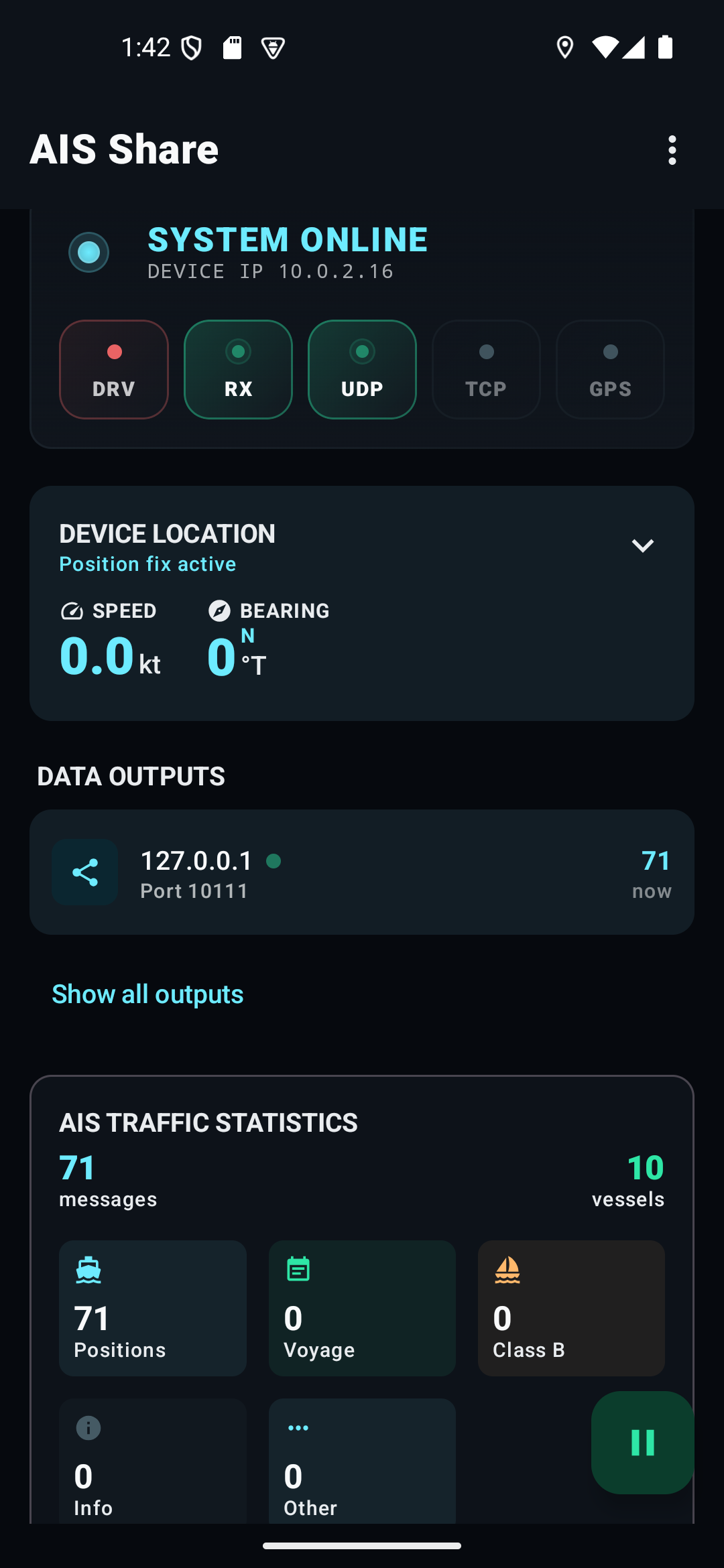
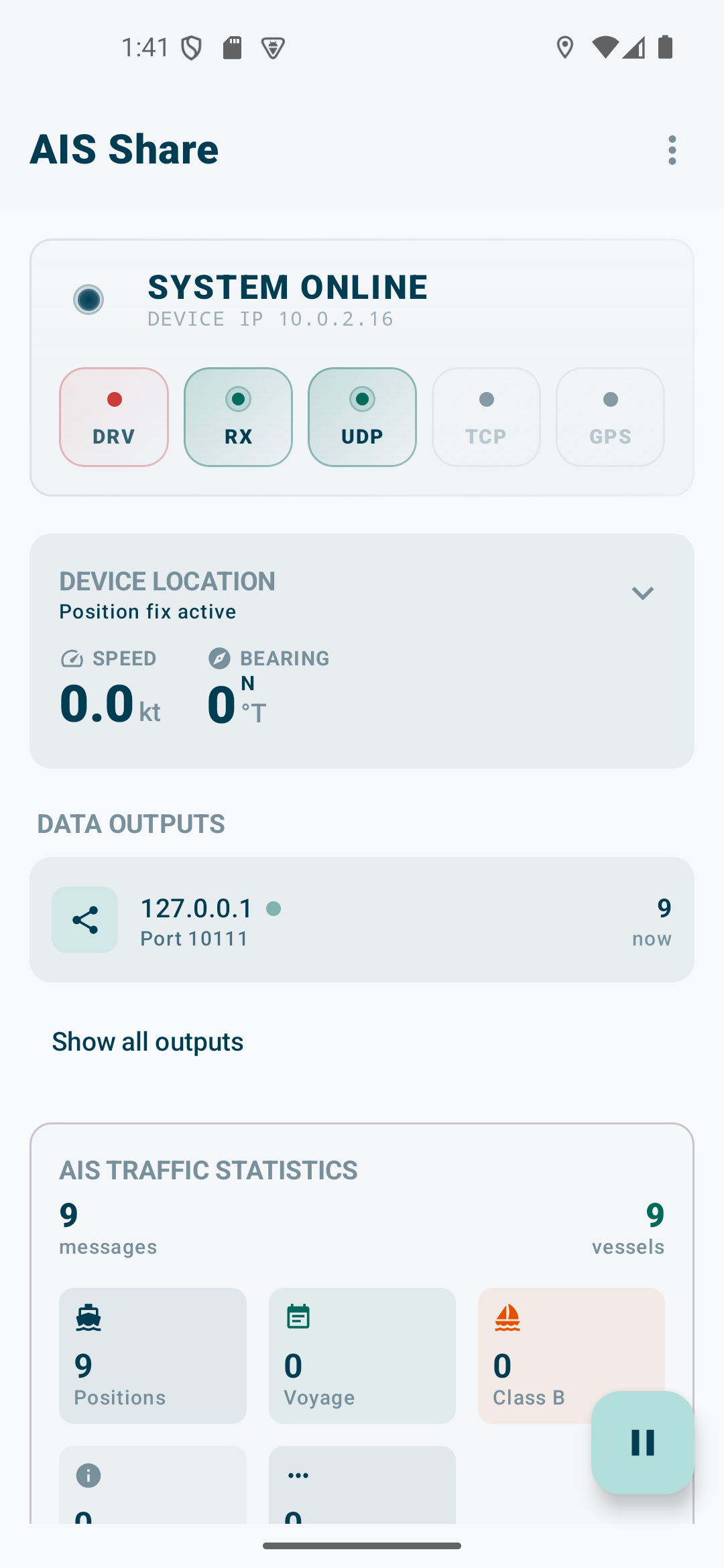
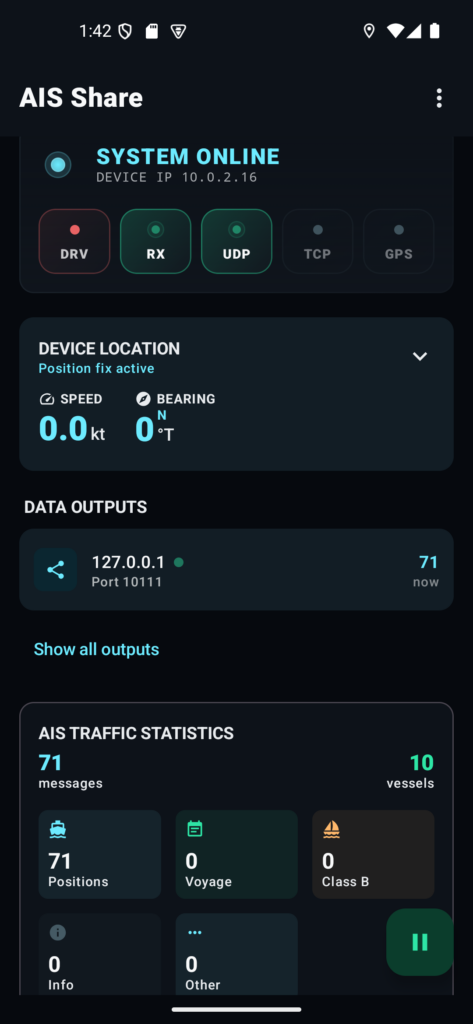
The top status row shows whether the driver, background processing, UDP sharing, TCP sharing, and GPS sharing are actually running. The most important badge is DRV, because it confirms the dongle and radio path are alive.
Wi-Fi IP always visible
AIS Share shows the device’s current Wi-Fi IP right on the main screen, which makes Navionics, OpenCPN, and other network client setup much faster onboard.
| Badge | Meaning |
|---|---|
| DRV | RTL AIS Driver is connected and decoding |
| RX | Live AIS message reception is active |
| UDP | UDP output service is forwarding AIS data |
| TCP | TCP server is running and ready for a client |
| GPS | GPS sharing is active |
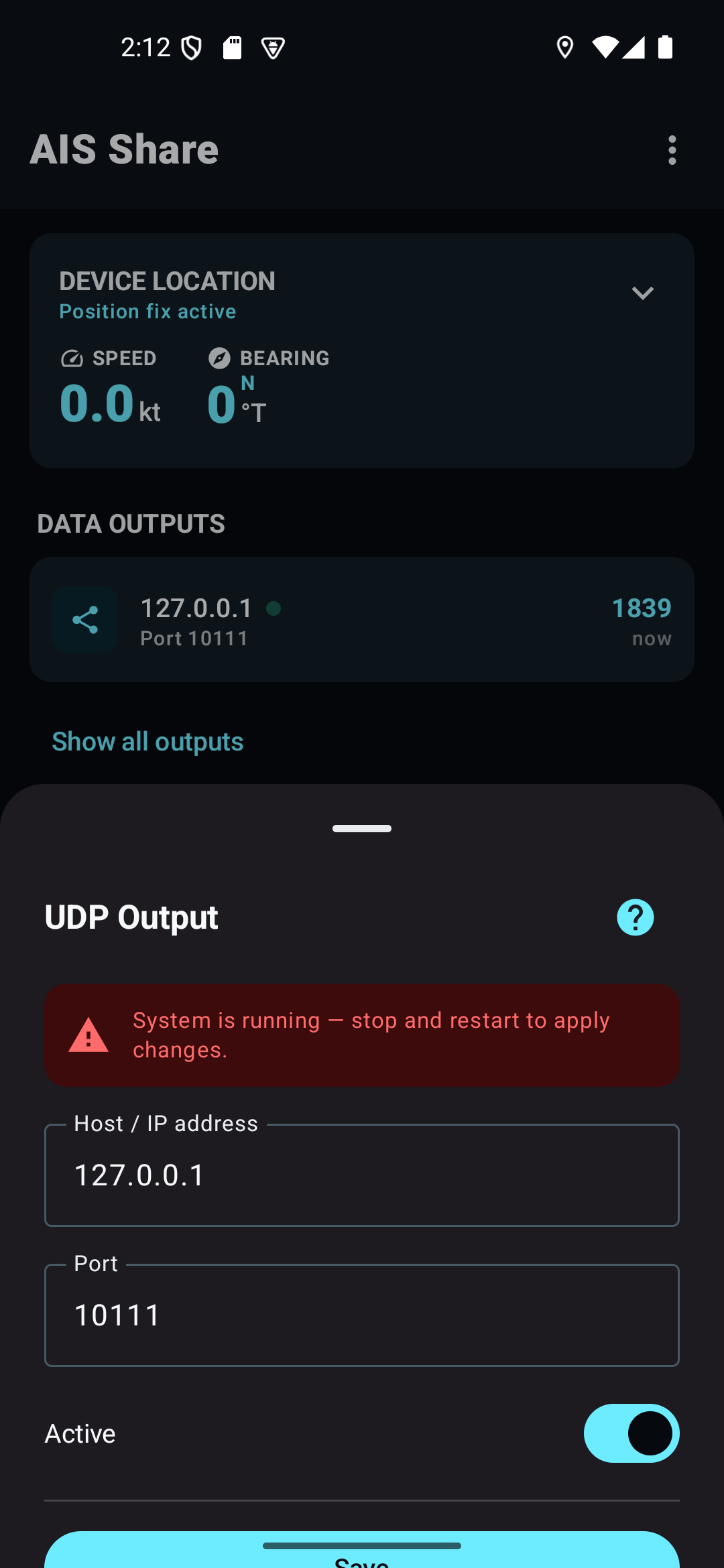
Inline output editing
Tap an output row and change host, port, or active state directly from the main screen. No more digging through settings just to fix one port number.
Live activity feedback
Active rows show a pulse indicator and recent send activity, so you can see whether data is flowing now, not just whether a checkbox is enabled.
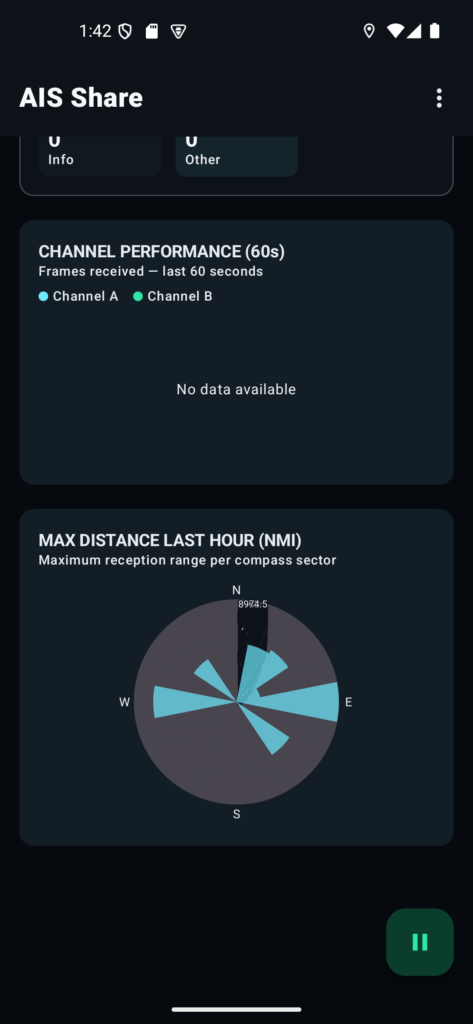
Reception Analysis: Polar Chart and Bar Chart
The Reception Range Polar Chart (opt-in) shows the maximum AIS distance per 22.5° sector over the last 60 minutes. It gives you a clear visual of your antenna’s performance in every direction.
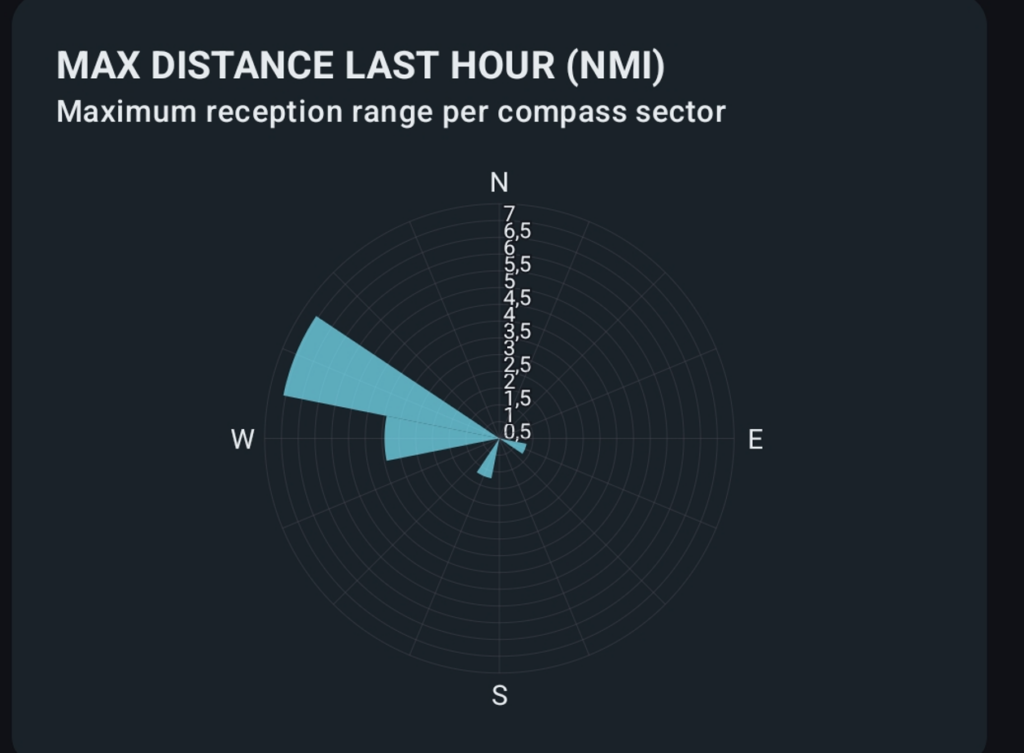
INFO: Reception Range Polar Chart
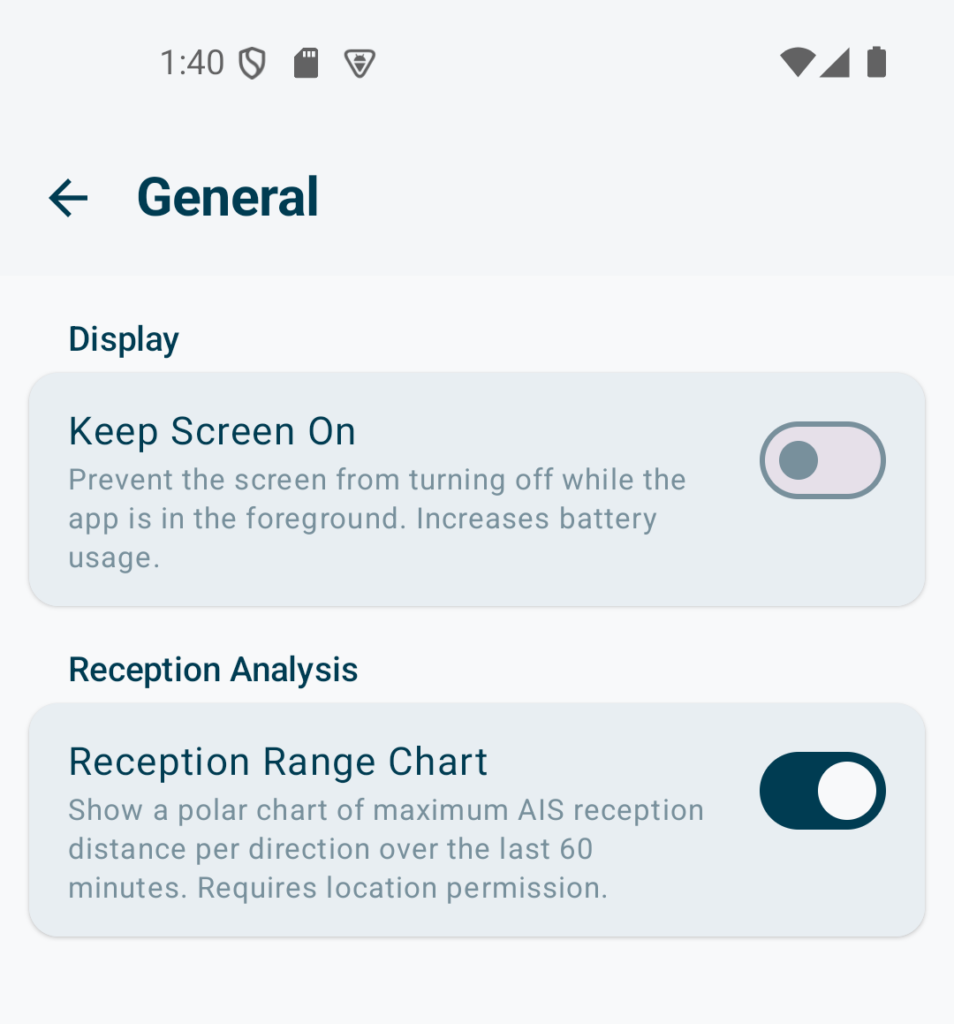
THIS FEATURE NEEDS TO BE ENABLED IN SETTINGS
Pair this with the Channel Performance Bar Chart to see real-time frame counts for Channel A and Channel B over a rolling 60-second window.
AIS Traffic Statistics
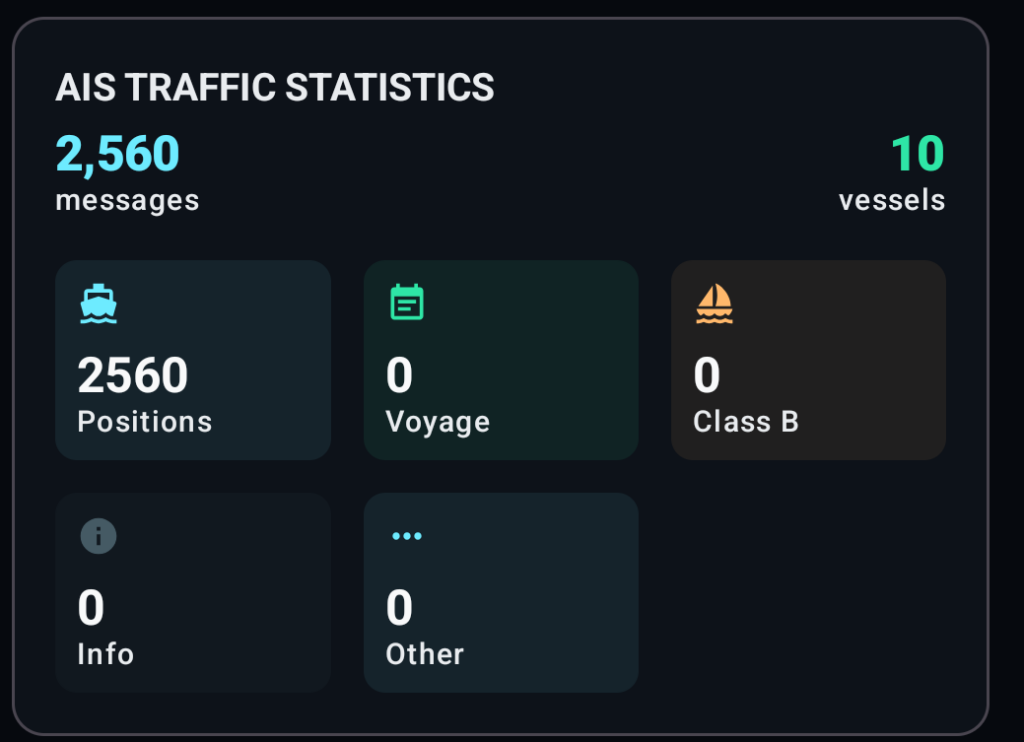
Keep track of exactly what you are receiving. The statistics card identifies message types including Positions (msg 1,2,3,18,19), Voyage (msg 5), and Info (msg 24). Most importantly, AIS Share tracks the number of Unique Vessels (MMSIs) seen in the current session, giving you a better sense of traffic density than raw message counts alone.
Marine Location Info Card
ATTENTION:
THIS FEATURE NEEDS TO BE ENABLED IN SETTINGS. Either you activate GPS Sharing or the Reception Range Chart
When GPS sharing or the Polar Chart is active, the Marine Location Card provides a detailed dashboard of your own vessel’s position. It features nautical DDM formatting, speed in knots (kt), course in degrees true (°T), and a live satellite count for the GPS fix.
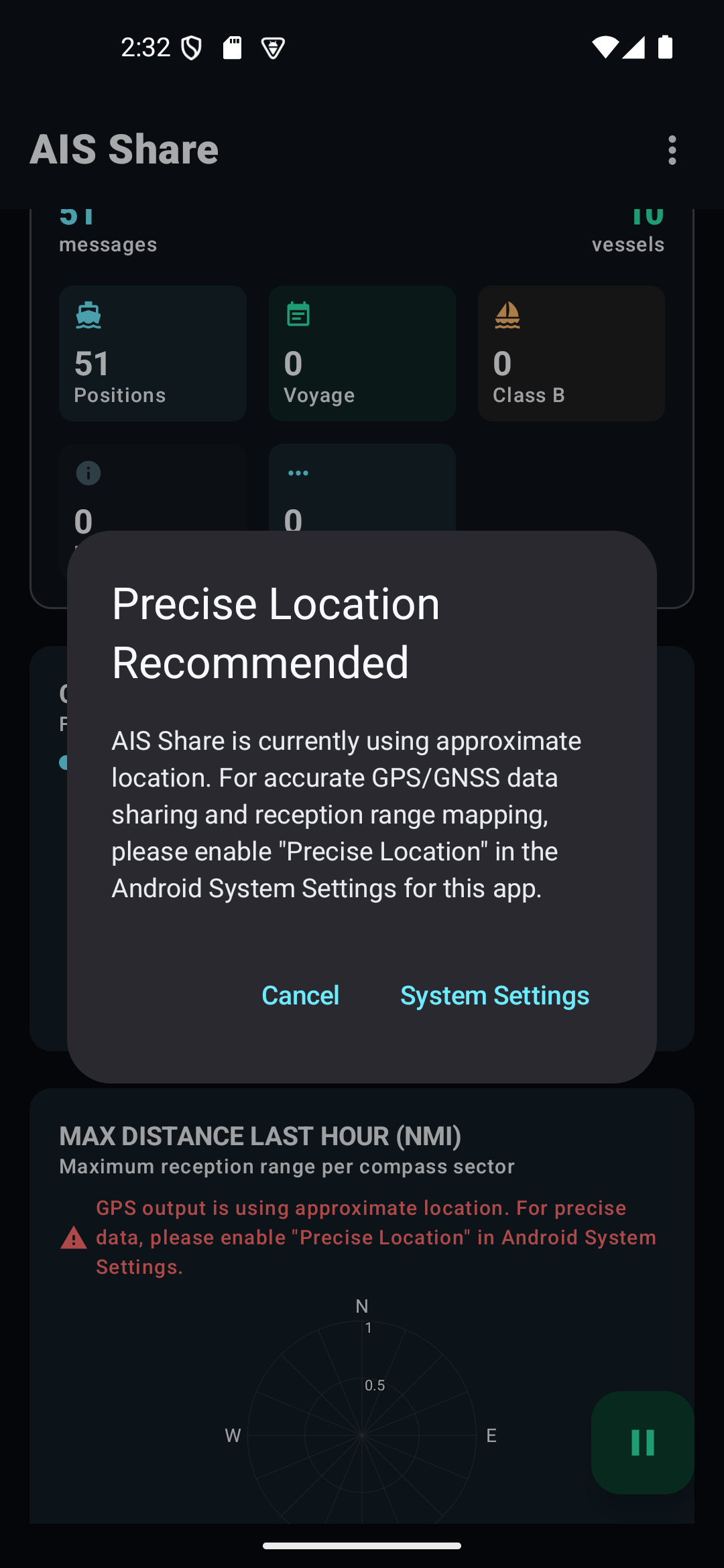
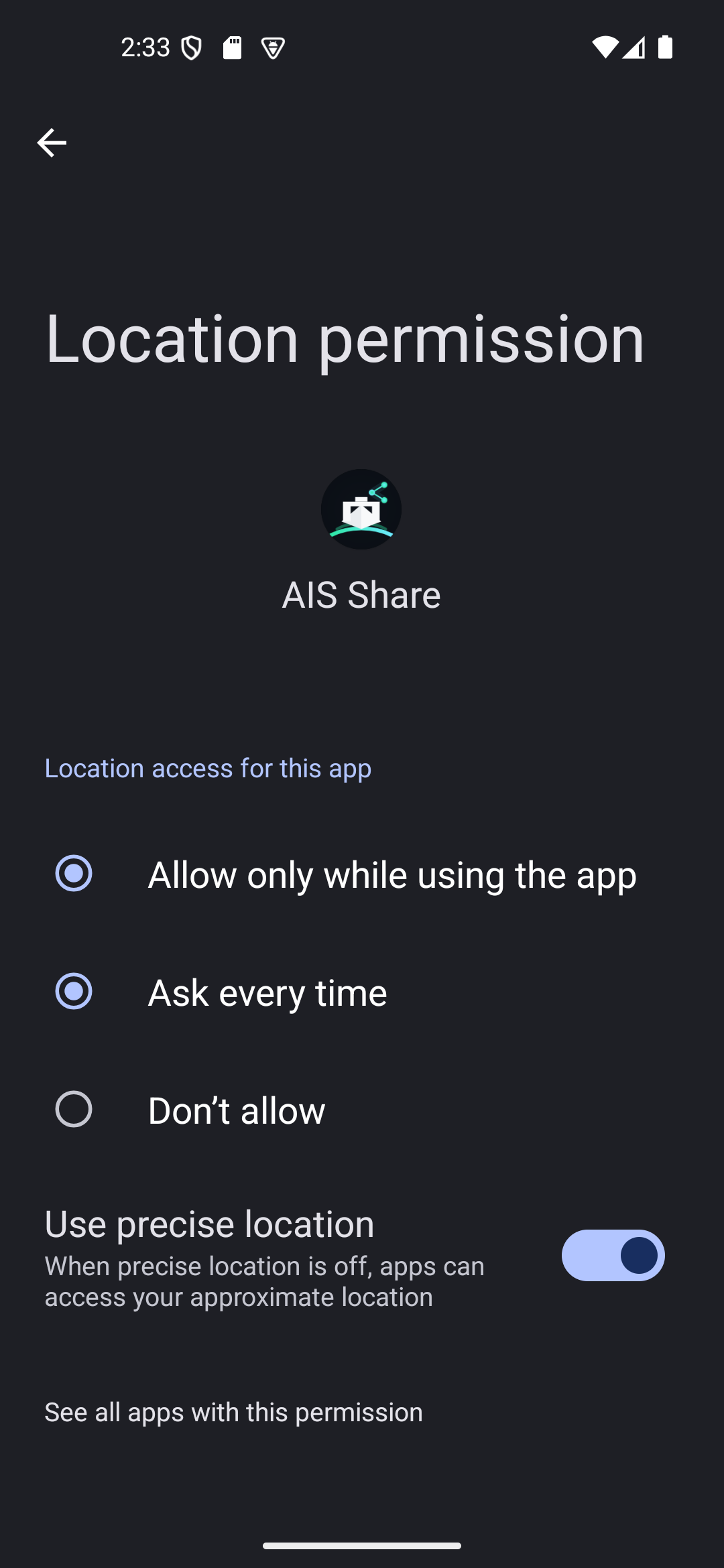
If only approximate location is available, a warning chip helps you troubleshoot permission settings.
Sharing AIS data to charting apps
AIS Share can forward live AIS NMEA data to up to 3 UDP outputs and 1 TCP server (one client at a time). Default ports are:
| Output | Default port | Protocol |
|---|---|---|
| UDP Output 1 | 10111 | UDP |
| UDP Output 2 | 10112 | UDP |
| UDP Output 3 | 10113 | UDP |
| TCP Server | 10114 | TCP |
| GPS Share | 10140 | UDP |
Use UDP
Best for simple distribution to one or more chart clients, especially OpenCPN-style setups and multi-device boat networks.
Use TCP
Best when a chart app prefers a single direct server connection, which is often the cleanest starting point for Garmin Navionics Boating.
If you have a boat Wi-Fi router, you can also broadcast to the whole onboard network. Set the destination IP to 255.255.255.255 for UDP outputs and compatible apps on the same network can listen on the selected port.
Compatible navigation apps and the settings that matter
AIS Share works best with charting apps that accept NMEA 0183 over UDP or TCP. Below are the most useful real-world setups for 2026.
| App | Best starting point | Why |
|---|---|---|
| Navionics Boating | TCP to AIS Share Wi-Fi IP | Good fit for a single direct feed from AIS Share into the app |
| OpenCPN | UDP input | Flexible network connections and easy multi-device use |
| Boat Beacon | UDP external AIS feed | Simple dedicated AIS target display workflow |
| Other NMEA apps | Match UDP or TCP port | If the app accepts NMEA 0183 input, it will usually work |
Navionics Boating (Garmin) – best tips first
- In AIS Share, enable the TCP server.
- Use the Wi-Fi IP shown on the AIS Share main screen.
- In Navionics, open the external device or paired device connection screen and create a Wi-Fi NMEA / TCP connection.
- Enter the AIS Share Wi-Fi IP and the same TCP port.
- Return to the chart and confirm that AIS targets are enabled in the app view.
Important Navionics hints
- Navionics (Boating app) requires a valid chart subscription for the area you are testing. Without it, AIS targets may not be displayed correctly even if data is received.
-
Depending on your setup, use the correct connection address:
- Different device: use the Android device network IP (e.g. 192.168.x.x)
- Same device: you can use 127.0.0.1 (localhost) if supported by the connection setup
- After connecting, make sure AIS targets are enabled in the chart display settings and that you are inside an area covered by your Navionics subscription.
- If AIS targets do not appear, check:
- Chart subscription is active for the region
- AIS layer/display is enabled in Navionics settings
- You have valid GPS position and correct map zoom level
- For dry runs, use AIS Share simulation mode. Ensure the test target is placed inside your subscribed chart region, otherwise it will not be visible on the map.
Have a look at this older post Is App XY compatible with AIS Share – ebcTech.eu
In short: for Navionics, start with TCP, the AIS Share Wi-Fi IP, and a stable boat Wi-Fi connection.
OpenCPN – the most flexible pairing
- Options > Connections > Add Connection
- Type: Network
- Protocol: UDP
- Direction: Input
- Address:
0.0.0.0or your chosen receive address - DataPort: the same UDP port configured in AIS Share
OpenCPN also works well over TCP if you prefer a direct client connection to the AIS Share TCP server, but for multi-device boat networks, UDP is usually the smoother starting point.
Boat Beacon – clean external AIS feed setup
- Enable one UDP output in AIS Share.
- Point it at the Boat Beacon device IP, or use your network broadcast strategy if appropriate.
- In Boat Beacon, enable the external AIS feed and use the same port number.
Other compatible apps
- Aqua Map / AquaMaps
- qtVlm
- SeaNav Pro
- PC-based charting software listening on the same boat Wi-Fi network
The rule is always the same: protocol, IP, and port must match on both sides. AIS Share makes that easier by showing the Wi-Fi IP on the main screen and keeping port setup straightforward.
GPS sharing for your own vessel position
AIS Share can forward your Android device GPS as standard NMEA 0183 sentences over UDP. This is useful when your chart app needs a position feed in addition to AIS targets, or when you want one Android device to supply GPS to another display device on the same network.
Configure a separate UDP host and port for GPS sharing. The default GPS port is 10140. Use a different port from your AIS feed so the chart app can keep the two streams cleanly separated if needed.
For GPS sharing, AIS Share generates standard NMEA 0183 sentences that many marine apps already understand:
- GPRMC for time, date, speed over ground, and course over ground
- GPGGA for core fix data and altitude
- GPGSA for active satellites and solution state
- GPGSV for satellites in view
GPS settings let you adjust update distance, update time, and the UDP send interval. If you enable Only Device NMEA, AIS Share forwards only the raw device-provided NMEA stream and disables the regular periodic sentence generation.
Simulation mode – test before you leave the dock
AIS Share includes a simulation mode that generates AIS traffic without real radio hardware. It is perfect for verifying network settings, testing chart app compatibility, or checking a fresh Navionics or OpenCPN setup at home.
- Test UDP and TCP output paths without waiting for live vessels.
- Check whether a chart app displays targets before your next trip.
- Use the custom simulated position to place targets where your chart subscription can actually display them.
523999991 to 523999999 range, which makes simulation ideal for testing Ship Tracking apps and validating AIS over UDP / AIS over TCP before you see real coastal traffic.AIS message coverage
AIS Share handles the standard AIS message families you actually expect in day-to-day use, including:
| Message type(s) | Description |
|---|---|
| 1, 2, 3 | Class A position reports |
| 4, 11 | Base station and UTC/time reports |
| 5, 24 | Static vessel data and voyage details |
| 6, 8, 12, 14 | Binary and safety messages |
| 9 | SAR aircraft position report |
| 18, 19 | Class B position reports |
| 21 | Aid-to-navigation reports |
| Others up to 24 | Management, interrogation, acknowledge, and channel control messages |
The integrated message counters inside AIS Share make it easy to confirm that real traffic is being received and decoded.
Battery and onboard-use tips
- Use the Whitelist action in AIS Share so Android does not aggressively stop background operation for either AIS Share or RTL AIS Driver.
- Enable Keep Wi-Fi radio on in General Settings when you depend on a continuous onboard network feed.
- Enable Keep Screen On if your helm tablet sleeps too aggressively during navigation.
- For long sessions, use a powered USB-C hub or a permanently powered tablet installation.
- If your device brand is known for killing background apps, check dontkillmyapp.com.
Advanced Settings: RTL AIS Driver and Expert Modes
AIS Share and RTL AIS Driver expose useful controls for both beginners and advanced SDR users. The goal is simple: keep the normal workflow easy, while still giving you the tools needed to tune an RTL-SDR receiver, optimize your VHF AIS setup, and feed downstream charting software cleanly.
RTL AIS Driver dongle settings
- PPM correction for frequency calibration
- Gain from 0-100% or automatic gain behavior
- AGC toggle when you prefer automatic RF gain control
- DC Filter to reduce center-frequency artifacts
- Edge tuning for alternative tuning behavior on some devices
- Bias-T for active antennas or LNAs on supported RTL-SDR Blog V3/V4 hardware
AIS Share output settings
- Enable or disable each of the three UDP outputs
- Set destination host and port per UDP output
- Enable or disable the single-client TCP server and set its port
- Edit outputs directly from the main screen for fast onboard changes
GPS settings
- GPS share host and port
- Update distance in meters
- Update time in seconds
- UDP send interval in seconds
- Only Device NMEA mode for raw device NMEA pass-through
General and debug settings
- Keep Screen On for helm or dashboard use
- Keep Wi-Fi radio on / Wi-Fi wake lock for stable network sharing
- Reception Range Chart opt-in toggle
- Simulation mode enable switch
- Custom longitude and latitude for the simulated vessel set
10100, and the app can auto-adjust if that IPC port collides with another service.FAQ
These are the most common real-world questions from sailors, SDR hobbyists, and anyone building an Android AIS receiver with RTL-SDR hardware.
Q: Why am I not receiving any ships?
A: First confirm that DRV and RX are active, then check the antenna, local vessel traffic, and whether you are in range of real AIS transmissions. Most “no ships” reports come from antenna placement, no nearby traffic, or USB power issues rather than the app itself.
Q: How far can AIS reception reach?
A: Range depends on antenna height, antenna quality, cable loss, surrounding terrain, and vessel antenna height. A good marine antenna can deliver surprisingly long coastal range, while an indoor whip may only see nearby traffic.
Q: Does it work completely offline?
A: Yes. After the apps are installed, AIS Share and RTL AIS Driver can receive, decode, and forward AIS data without any cloud service. Internet is only relevant for downloads, updates, or map data used by other chart apps.
Q: Can I use RTL-SDR Blog V4?
A: Yes. RTL-SDR Blog V4 is a good supported choice for this Android AIS setup, and it also supports Bias-T when you need to power an active antenna or LNA.
Q: Does it work with Nooelec NESDR dongles?
A: Usually yes, as long as the dongle uses the common RTL2832U platform with a compatible R820T or R860 tuner. As always, antenna quality still matters more than the sticker on the dongle.
Q: Can I use an external antenna?
A: Absolutely. In fact, a proper external AIS or VHF antenna is one of the best upgrades you can make for better Marine AIS reception and longer range.
Q: Can I use TCP output?
A: Yes. AIS Share provides a TCP server on port 10114 by default. It accepts one client at a time — see Sharing AIS Data for configuration details.
Q: Can I use UDP output?
A: Yes. AIS Share provides three independent UDP outputs by default — see Sharing AIS Data for ports and configuration.
Q: Can multiple navigation apps receive the stream at the same time?
A: Yes over UDP. Multiple apps or devices can listen to the same UDP feed if the IP/port setup matches. Over TCP, only one client can connect at a time.
Q: Which Android devices are compatible?
A: Any Android phone or tablet running Android 6.0+ with working USB Host / OTG support can be a candidate. In practice, tablets with stable power and decent Wi-Fi are especially convenient onboard.
Q: Can I forward my GPS position?
A: Yes. AIS Share can transmit your own device position over UDP as NMEA 0183, which is helpful when a chart app needs both AIS targets and a local GPS feed.
Q: What NMEA sentences are generated for GPS sharing?
A: AIS Share generates GPRMC, GPGGA, GPGSA, and GPGSV — see GPS Sharing for all options.
Q: Why is USB permission requested every time I connect?
A: That behavior depends partly on Android and partly on the device vendor. If your device offers an “always use” or “remember” checkbox for the USB permission dialog, enable it.
Q: Why is my reception poor?
A: Check the antenna first, then the cable, then the mounting position, then the dongle gain settings. AIS lives on VHF, so poor antennas, metal obstructions, and noisy electronics can reduce range dramatically.
Q: Can I use it with Navionics Boating / Garmin Boating?
A: Yes. Navionics usually works best with the AIS Share TCP server and the phone or tablet Wi-Fi IP, provided AIS display is enabled and the chart subscription covers the test area.
Q: Can I use it with OpenCPN?
A: Yes. OpenCPN is one of the easiest pairings because it supports flexible NMEA network inputs. UDP is often the simplest starting point.
Q: Can I use it with other navigation software?
A: Usually yes if the app accepts NMEA 0183 over UDP or TCP. That includes many Android, Windows, and marine charting tools beyond OpenCPN and Navionics.
Q: Can I run it in the background?
A: Yes. AIS Share is designed around a foreground service so reception and forwarding can continue while you switch apps.
Q: Does it run while my screen is off?
A: Usually yes, especially when battery optimization is disabled for both apps. Some vendors are more aggressive than others, so whitelisting is important.
Q: What is simulation mode for?
A: Simulation mode lets you test your AIS Decoder, network setup, and chart app compatibility without waiting for live vessels — see Simulation Mode for details.
Q: How do I test my setup without real vessels?
A: Enable Simulation Mode, then connect your chart app to the configured UDP or TCP output. You can also set a custom simulated position so the test vessels appear inside your subscribed chart area.
Q: What is the Reception Range Polar Chart?
A: It is a directional performance view — 16 sectors of 22.5° over 60 minutes — that helps you spot antenna shadowing. See Reception Analysis for how to enable it.
Q: Why does the Polar Chart need location permission?
A: The chart compares vessel positions with your own device location. Without location permission, AIS Share cannot calculate direction and distance from your position.
Q: What does the “Only Device NMEA” GPS setting do?
A: It forwards only the raw NMEA data supplied by the Android device and disables the app’s normal periodic GPS sentence generation. See GPS Sharing for all available options.
Q: What is Bias-T and when should I use it?
A: Bias-T injects DC power onto the antenna line to power an active antenna or low-noise amplifier. Only enable it when your hardware supports it and your antenna path is designed for it, such as RTL-SDR Blog V3/V4 with a compatible active front end.
Troubleshooting
If your Network AIS feed does not behave as expected, these are the first checks worth making before changing too many settings at once.
Q: USB device not detected
A: Try a different OTG adapter, a powered hub, or a different Android device. Some phones provide limited USB power and will not reliably start certain dongles.
Q: USB permission denied or re-requested every time
A: Reconnect the dongle, reopen AIS Share, and accept the USB dialog for RTL AIS Driver. If the dialog offers an “always use” option, enable it so Android remembers the association.
Q: No AIS messages received
A: If DRV is active but counters stay at zero, focus on antenna, location, and live traffic conditions — check the Status Badges section for what each indicator means.
Q: Only a few ships received / poor coverage
A: This usually points to antenna placement, low antenna height, heavy obstructions, or a poor feed line. See Supported Hardware for antenna guidance.
Q: Poor AIS reception / short range
A: Try a better marine AIS or VHF antenna, check connectors for loss or corrosion, and test different gain or AGC settings. See Supported Hardware for antenna guidance.
Q: No GPS fix / GPS sharing not working
A: Make sure location permission is granted, GPS is enabled on the device, and the GPS sharing output is active.
Q: TCP client cannot connect
A: Verify the chart app is using the AIS Share device IP and the correct TCP port — see Sharing AIS Data for port defaults. The TCP server accepts only one client at a time.
Q: UDP stream not received by charting app
A: Check that the destination IP and port in AIS Share exactly match the listening IP/port in the charting app — see Sharing AIS Data for configuration.
Q: Android battery optimization killing the app in background
A: Use the battery-optimization whitelist for both AIS Share and RTL AIS Driver. On some brands, this single step makes the difference between a stable background receiver and constant shutdowns.
Q: USB OTG not working / dongle draws too much power
A: Use a powered USB hub or a better OTG cable. Power-starved setups often cause disconnects, failed initialization, or intermittent reception.
Q: Unsupported or unrecognized RTL-SDR device
A: Prefer RTL2832U-based hardware with R820T or R860 tuners. Very unusual tuner variants or non-RTL USB receivers are not the intended target for this app pair.
Q: Wrong or unsuitable antenna
A: AIS is transmitted on marine VHF frequencies, so random TV or HF antennas are a poor match. See Supported Hardware for antenna guidance.
Q: Network firewall blocking UDP/TCP traffic
A: Some routers, guest networks, and mobile hotspots isolate clients or restrict peer-to-peer traffic — see Sharing AIS Data for network setup guidance.
Q: AIS targets not appearing in Navionics despite connection
A: Check that your chart subscription covers the area — see the Navigation App Guide for Navionics tips and how to use Simulation Mode for testing.
Pricing and download
Free Companion App
RTL AIS Driver
Free
Provides RTL-SDR device support and AIS signal decoding. This app receives AIS messages from a compatible RTL-SDR receiver and makes the decoded vessel data available to AIS Share.
▶Get it onGoogle PlayPremium App
AIS Share
One-time purchase • No subscription
AIS Share is the premium companion app for your DIY AIS receiver setup. It provides a modern Material 3 interface, rolling reception charts, unique vessel tracking, and seamless NMEA 0183 integration for professional charting apps.
▶Get it onGoogle PlayIf you want a compact Android-based AIS setup without moving straight to expensive dedicated marine hardware, this is exactly the niche AIS Share and RTL AIS Driver are built for.
Safety disclaimer
Do not rely on AIS Share or RTL AIS Driver for safety of life or property. These apps are for informational and hobby use. Reception quality, vessel coverage, message completeness, and network forwarding cannot be guaranteed. Always comply with local regulations for radio reception and always use approved marine navigation equipment where required.
Updated 2026 | Christian Ebner / ebcTech.eu