📡 What is RTL-SDR 433?
RTL-SDR 433 is a Android app that uses a cheap RTL-SDR USB dongle to receive and decode wireless sensor signals in the 433 MHz ISM band — entirely on your phone, with no internet connection required.
- ✅ Fully on-device — no cloud, no subscription, no data collection
- ✅ 258 supported device protocols (rtl_433 v25.12)
- ✅ Live sensor list and full history log
- ✅ Weather stations, TPMS, doorbells, motion sensors & more
- ✅ Sensor collections — group sensors into named lists and filter by car, room, or use case
- ✅ Works on Android 10+ (API 29)
- ✅ No root required — uses standard Android USB Host API
- ✅ Free to try — premium upgrade removes session limits
🛒 What You Need
You only need three things to get started:
1. RTL-SDR USB Dongle
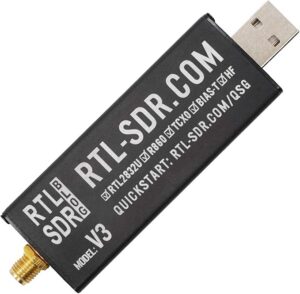
Any RTL2832U-based dongle works. We recommend the RTL-SDR Blog v3 or v4 for best performance. They cost around €25–€35 and include a quality antenna.
Note to all links: As an Amazon Associate and Aliexpress Affiliate, I will get a small commission from qualifying purchases. The decision is yours, and whether or not you decide to buy something is completely up to you.
2. High-Quality USB OTG Cable
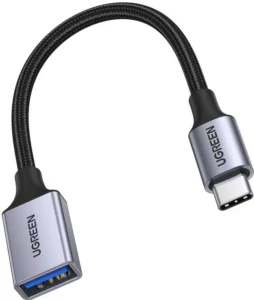
Use a quality USB OTG cable (USB-A female → USB-C or Micro-USB male). Cheap cables are the #1 cause of connection failures — don’t skip this.
Note to all links: As an Amazon Associate and Aliexpress Affiliate, I will get a small commission from qualifying purchases. The decision is yours, and whether or not you decide to buy something is completely up to you.
3. The App
Download RTL-SDR 433 from the Google Play Store. Requires Android 10 (API 29) or higher. USB OTG must be supported by your phone (most Android phones from 2016+ support it).
4. Antenna
The dongle’s included short whip antenna works fine for sensors within 10–20 m. For longer range, use a dedicated 433 MHz dipole or slim-jim antenna — these cost under €10 and dramatically improve range to 50–100+ metres.
Note to all links: As an Amazon Associate and Aliexpress Affiliate, I will get a small commission from qualifying purchases. The decision is yours, and whether or not you decide to buy something is completely up to you.
🌡️ What Sensors Can You Decode?
RTL-SDR 433 includes the full rtl_433 v25.12 decoder library — 258 device protocols out of the box. If it transmits on 433 MHz (or 315/345/868/915 MHz), chances are this app already knows it.
| Category | What you’ll see | Example devices |
|---|---|---|
| 🌤️ Weather stations | Temperature, humidity, pressure, wind speed & direction, rain gauge | Bresser, Ambient Weather, Oregon Scientific, Acurite, Fine Offset, Nexus |
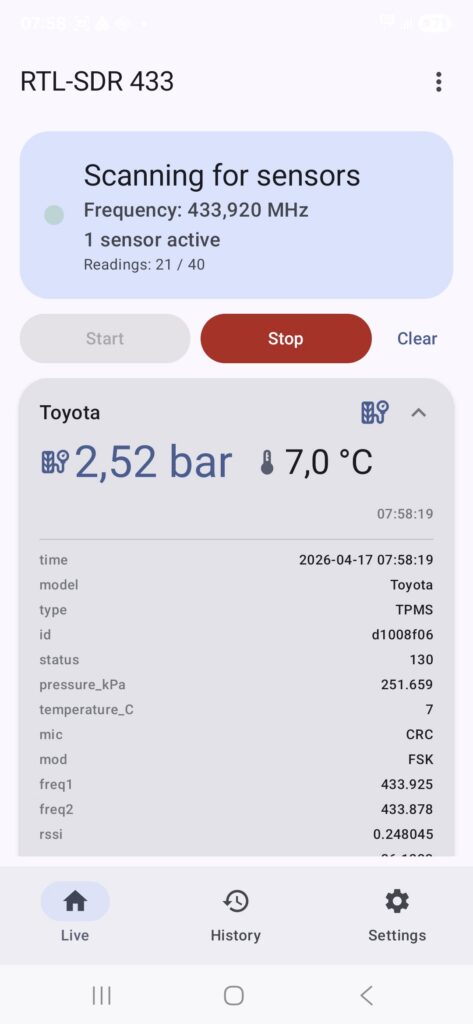
| 🚗 TPMS (Tyre pressure) | Tyre pressure (kPa / PSI), tyre temperature, wheel position | Ford, Toyota, Nissan, Kia, VW, BMW — most car brands since 2012 |
| 🚪 Door & window sensors | Open / closed state, tamper alert | Generic 433 MHz door contact sensors (alarms, smart home) |
| 🏃 PIR motion sensors | Motion detected event | Generic PIR modules, alarm systems |
| 🔔 Wireless doorbells | Button press event, unit & key code | Byron, Elro, Interlogix, Honeywell, Kerui |
| ⚡ Power / energy meters | Current consumption (kW/kWh) | Efergy, ERT/AMR smart meters, Revolt, Lacrosse |
| 💧 Water / soil sensors | Moisture %, water leak detected | Generic soil moisture probes, leak detectors |
| 🌿 Environment extras | UV index, light level (lux), CO₂ (ppm) | Multi-sensor weather stations |
| 🔥 Smoke & alarms | Alarm trigger state | Generic 433 MHz smoke/heat detectors |
| 🔌 Remote sockets | Switch ON/OFF commands | KAKU, Intertechno, Brennenstuhl, Mumbi |
📱 How to Use the App
Step 1 — First Launch & EULA
On the very first launch, the app shows an End User Licence Agreement (EULA) dialog. Read it and tap Accept to continue. Tapping Decline closes the app. This only appears once.
Step 2 — Connect the Dongle
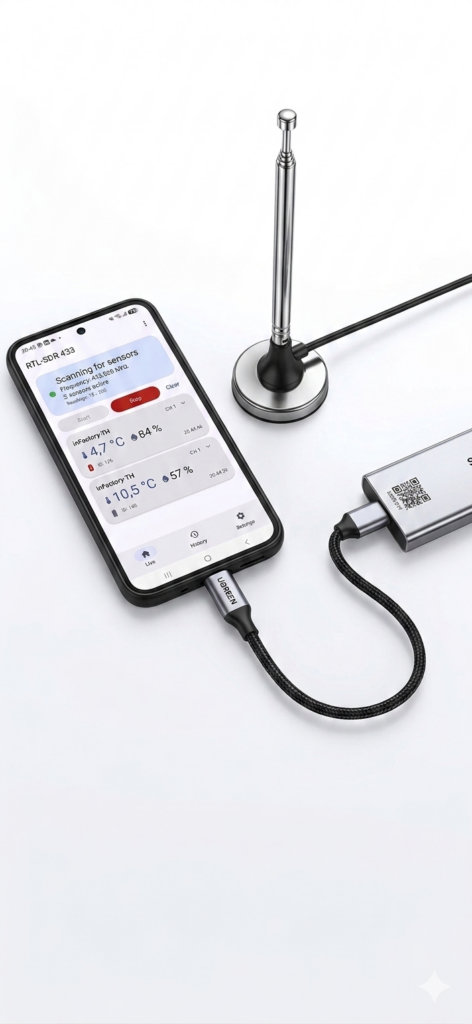
Connect your RTL-SDR dongle to your Android phone via the USB OTG cable before pressing Start. Android will detect the device and automatically prompt for USB permission — tap Allow (and optionally tick “Always allow for this app” to skip this step in future).
Step 3 — Press Start
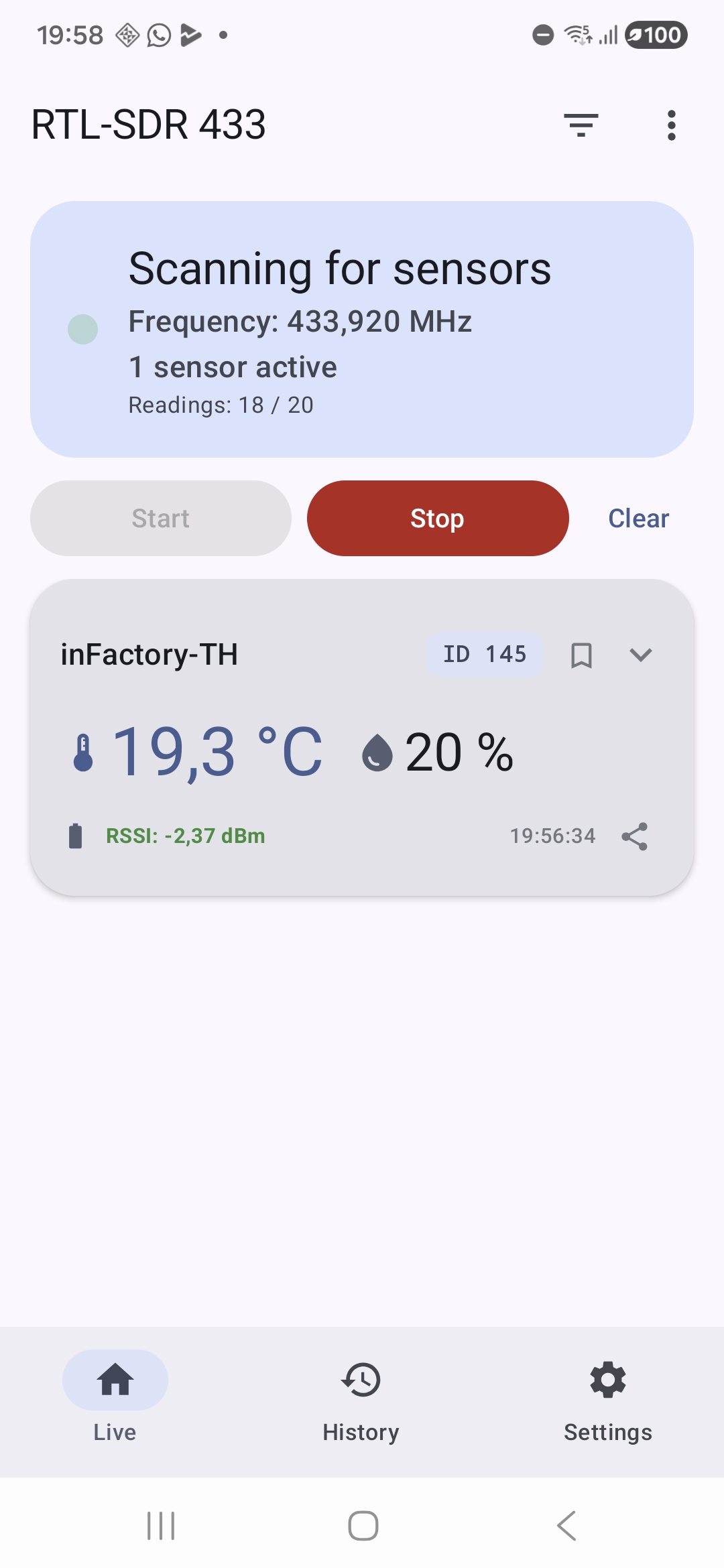
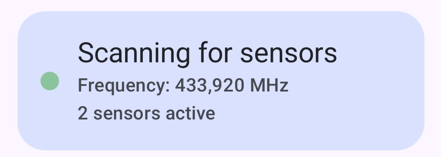
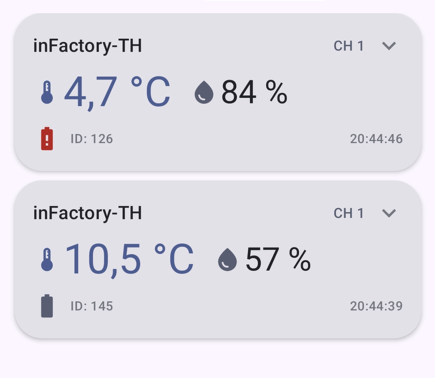
Tap the Start button on the Home screen. The status card changes to Running (green dot) and the active frequency is shown. rtl_433 starts scanning and decoded sensor packets appear as cards below. Note: It could take up to 2 minutes after sensor data are received so be patience.
Step 4 — View History
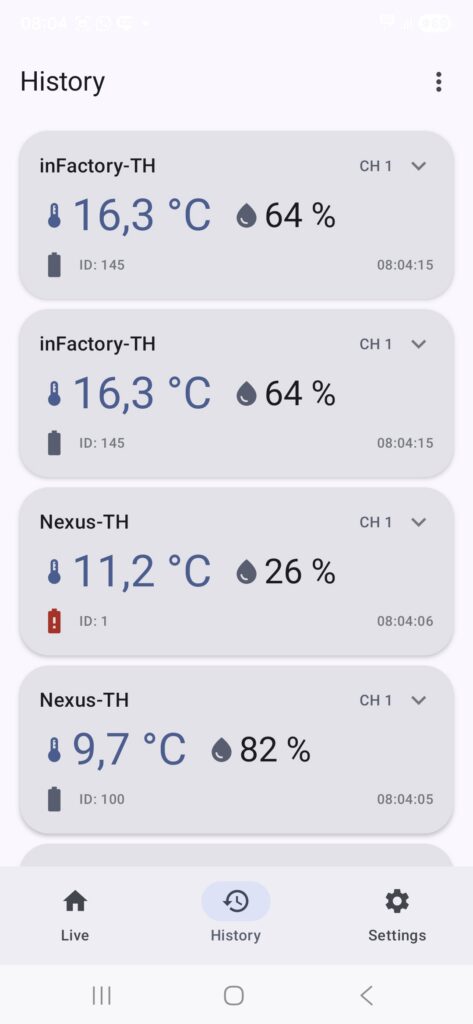
Tap the History icon in the bottom navigation bar to see a full chronological log of every decoded packet. This is useful for checking how often a sensor transmits or for spotting intermittent issues.
Step 5 — Tune the Settings
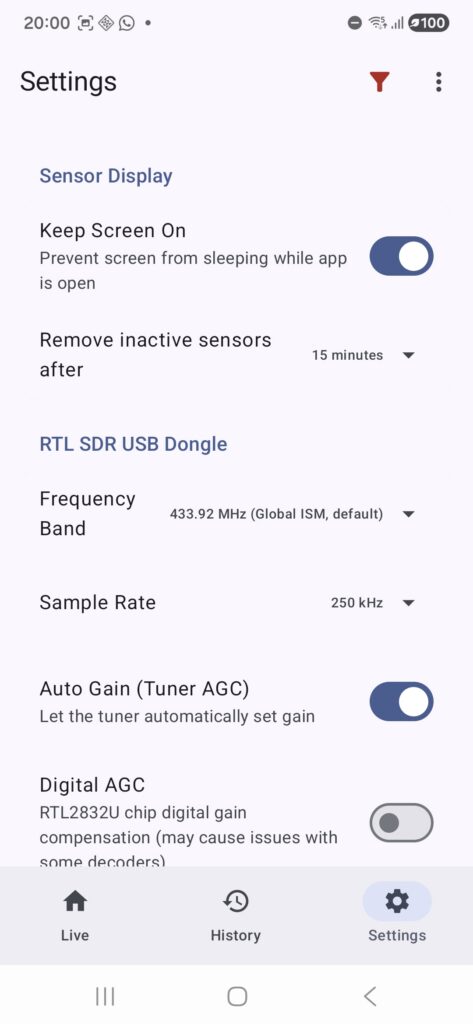
Open the Settings tab (gear icon) to adjust the app behaviour. Settings are organised into four groups:
🖥️ Display
| Setting | Default | Description |
|---|---|---|
| Keep screen on | On | Keeps the display active while the SDR is running — useful for continuous monitoring. |
| Sensor timeout | 5 min | Auto-removes sensor cards that have not sent a new packet within the chosen period. Options: Never / 1 / 2 / 5 / 10 / 15 / 30 min / 1 h. Set to “Never” to keep all cards visible indefinitely. |
📡 RTL-SDR
Please note: Every change on a RTL-SDR parameter needs a fresh Start / Stop cycle to take over the parameter to the driver. There is no live change.
| Setting | Default | Description |
|---|---|---|
| Frequency preset | 433.92 MHz | Choose a preset band. Selecting a preset also auto-sets the recommended sample rate. Options: 315 MHz (NA OOK), 345 MHz (NA), 433.92 MHz (Global ISM), 868.3 MHz (EU SRD), 915 MHz (NA ISM), Manual. |
| Frequency (manual) | 433 920 000 Hz | Only shown when “Manual” preset is selected. Enter the exact centre frequency in Hz. |
| Sample rate | 250 kHz | 250 kHz for 315/345/433 MHz OOK sensors. Use 1024 kHz for the 868 MHz European SRD band. |
| Auto gain (AGC) | On | Lets the receiver tune its own gain automatically. Recommended for most setups. Disable to set gain manually. |
| Gain | 20.0 dB | Only shown when Auto gain is off. Adjust from 1.0 to 49.6 dB. Start at 20 dB — increase until you see more sensors, stop before noise dominates. |
| Digital AGC | Off | Enables the RTL2832U chip hardware digital gain correction. Leave off for most use. Enable only near strong transmitters if you see clipping. |
| PPM correction | 0 | Crystal frequency offset correction. RTL-SDR Blog v3/v4 have a TCXO and need no correction. Adjust only if your dongle has a known offset. |
| Units | SI | How decoded values are displayed: Native (raw decoder units), SI (°C, km/h, mm …), or Customary (°F, mph, in …). |
📶 RSSI Signal Highlighting
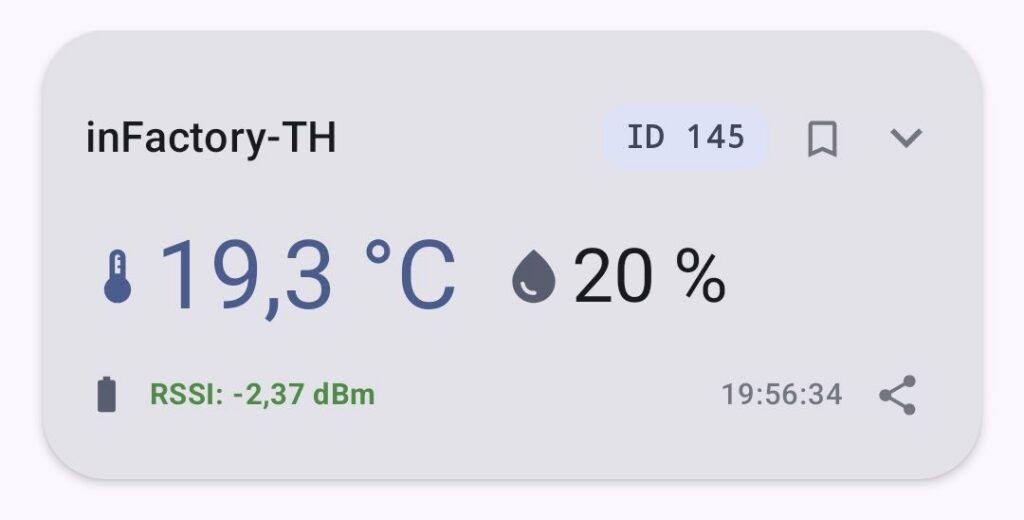
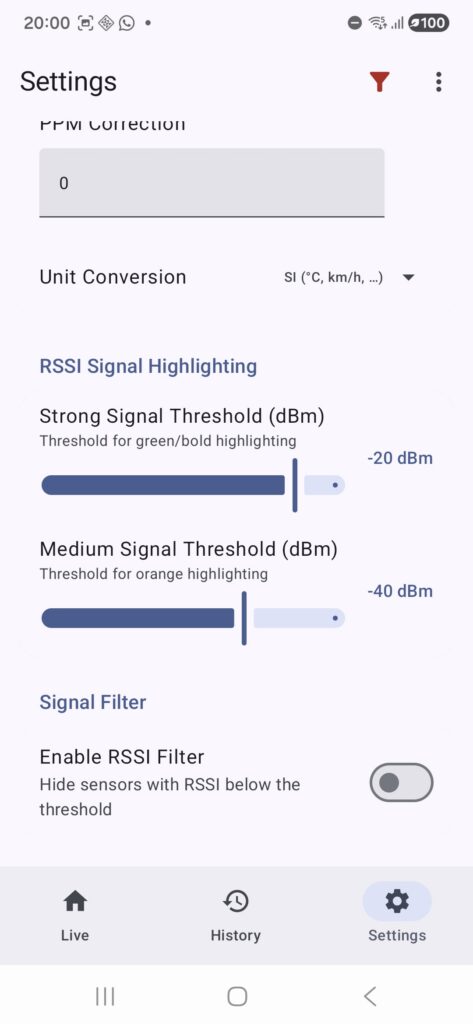
Controls the colour of the signal-strength bar on each sensor card. All sensors remain visible — this only affects the colour coding. Above the strong threshold → green; between the two thresholds → orange; below the medium threshold → red.
| Setting | Default | Description |
|---|---|---|
| Strong signal threshold | −20 dBm | RSSI above this value → green signal bar on the sensor card. |
| Medium signal threshold | −40 dBm | RSSI between this and the strong threshold → orange bar. Below this → red bar. |
🔎 Signal Filter
Hides sensor cards whose RSSI is below a chosen threshold — different from the colour-coding above, which only changes appearance. Can also be toggled instantly from the ⋮ overflow menu without opening Settings.
| Setting | Default | Description |
|---|---|---|
| Signal filter | Off | When enabled, sensor cards below the filter threshold are hidden from the home screen. |
| Filter threshold | −20 dBm | Only shown when the signal filter is on. Sensors with RSSI below this level are hidden (range: −40 to 0 dBm). |
Step 6 — Overflow Menu (⋮)
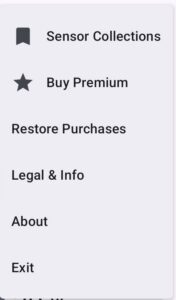
Tap the three-dot menu ⋮ in the top-right corner for extra options:
- Collections — create and manage named sensor groups; open the full Collections screen
- RSSI filter — quick toggle showing current state (“Active − X dBm” / “Inactive”); enable or disable signal-strength filtering without opening Settings
- Buy Premium — remove the free-tier reading limit permanently (one-time purchase)
- Restore Purchases — re-activate premium if you reinstalled the app
- About — app version, developer info
- Legal & Info — EULA, Terms, Privacy Policy, Changelog, Open-Source Licenses
- Exit — cleanly stops the SDR and closes the app
🗂️ Sensor Collections — Organise Your Sensors
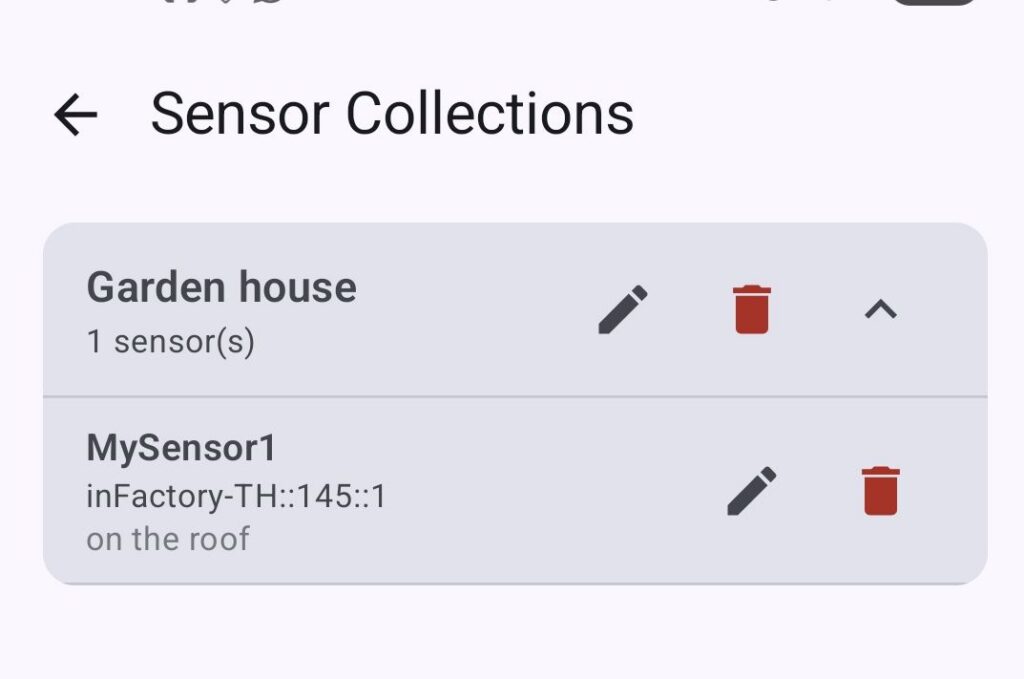
With Sensor Collections, you can group any of your decoded sensors into named lists — a car, a garden, a room — and instantly filter the home screen to show only those sensors. Each sensor in a collection can have a custom name and an optional personal note. Everything is saved automatically and persists across restarts.
🚗 TPMS — Monitor Your Car’s Tyres
Create a “My Car” collection and add the four TPMS sensors from your vehicle. Give each wheel a clear name: Front Left, Front Right, Rear Left, Rear Right.
Activate the collection as the active filter and the home screen shows only those four sensors — tyre pressure in kPa or PSI, tyre temperature, and battery status — with no other traffic cluttering the view.
TPMS sensors transmit every ~60 seconds at rest and more frequently while driving. Park near the dongle for a few minutes and all four wheels will appear automatically. Great for a pre-trip tyre check or tracking slow leaks over time.
🌤️ Garden — Outdoor Sensors at a Glance
Have a weather station in the garden, a soil moisture probe near the flowerbeds, and a rain gauge on the fence? Group them all into a “Garden” collection and give each one a human-friendly name.
One tap on the filter icon and you see only your garden sensors — temperature, humidity, rain and soil moisture side by side, with no indoor or car sensors mixed in.
🏠 Home — Room-by-Room Monitoring
Scatter door/window sensors, PIR motion sensors, and indoor climate sensors across your home? Create a collection per room — “Living Room”, “Bedroom”, “Basement” — and name each sensor precisely.
Switch between collections in seconds using the filter icon in the top bar. Add a note to any sensor to remind yourself where it’s mounted or when it was last checked.
How Collections Work
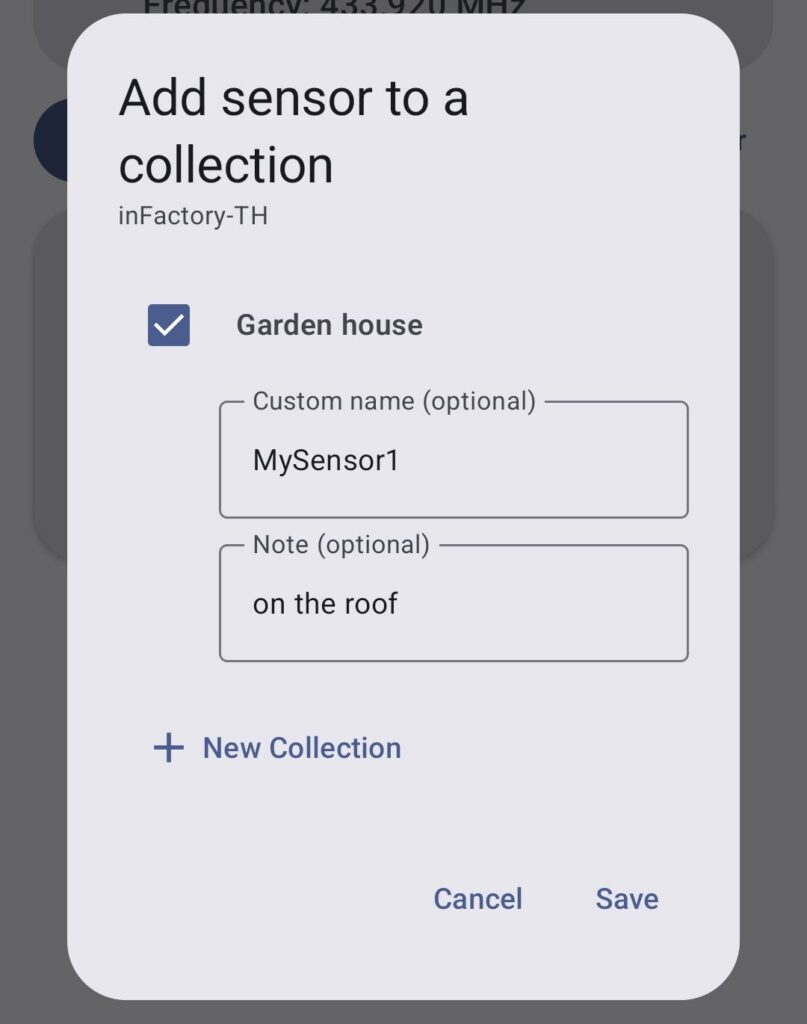
- Tap the bookmark icon on any sensor card — it opens the collection membership dialog for that sensor.
- Select an existing collection or tap New collection to create one on the spot. Type a name and tap Save.
- Optionally set a custom name (shown as the card title on the home screen) and a personal note for that sensor.
- Tap the filter icon in the top bar (next to the app title) to activate a collection as the live filter — only sensors in that collection are shown on the home screen.
- Tap the filter icon again (or select “No filter”) to return to the full unfiltered list.
- To manage all collections at once, open ⋮ → Collections — create, rename, delete, and inspect their members from one screen.
📶 Combine with the Signal Strength Filter
The RSSI signal filter (Settings → Signal Filter) hides sensors whose signal is weaker than a chosen threshold (−40 to 0 dBm). You can also toggle it instantly from ⋮ → RSSI filter without opening Settings. Use it alongside a collection — for example, show only your “My Car” sensors and only the ones with a strong signal — for a completely clean, focused view.
⭐ Free vs. Premium
🆓 Free
- Full decoding functionality
- All 258 protocols
- Live view + History
- All settings
- Sensor collections & RSSI filter
- Session reading limit (100 → 80 → 60 → 40 → 20 per session, decreasing)
⭐ Premium
- Everything in Free
- Unlimited readings per session
- One-time purchase — no subscription
- Persists across reinstalls (Google Play)
⚠️ Known Problems & Solutions
RTL-SDR on Android can be tricky. Here are the most common issues and how to fix them.
🔴 Problem: Dongle Not Recognised / No USB Permission Dialog
Cause: Bad OTG cable, missing USB OTG support on phone.
Solutions:
- Replace the OTG cable — this is the #1 fix. Use a branded cable (Ugreen, Anker, Cable Matters). Avoid generic €1 adapters.
- Unplug and replug the dongle after opening the app.
- Check that your phone supports USB OTG. Most Android phones since ~2016 do. Look for “USB OTG” in the phone specs.
🔴 Problem: App Starts But No Sensors Appear
Cause: No 433 MHz devices in range, wrong frequency, or AGC not yet converged.
Solutions:
- Wait up to 2 minutes after pressing Start — the RTL-SDR AGC needs time to converge
- Make sure you have a 433 MHz sensor nearby and it is actively transmitting. Most weather stations transmit every 30–60 seconds. Press the button on a wireless doorbell to get an immediate test packet.
- Check the frequency setting — European sensors use 433.92 MHz, North American OOK sensors use 315 or 345 MHz.
- Try increasing the gain manually (20–35 dB) if the antenna is far from sensors.
- Attach a proper 433 MHz antenna — the included whip is minimal. A resonant dipole or slim-jim makes a big difference.
- If a collection or RSSI filter is active, check the filter icon in the top bar — an active filter may be hiding sensors. Tap it and select “No filter” to see all decoded signals.
🔴 Problem: SDR Stops After a Few Seconds
Cause: USB power issue or OTG cable unable to carry enough current.
Solutions:
- Use an active USB OTG hub with external power — this powers the dongle independently of the phone battery.
- Disable phone battery optimisation for this app: Settings → Apps → RTL-SDR 433 → Battery → Unrestricted.
- The RTL-SDR Blog v3/v4 are known to draw ~350 mA peak. Some budget phones limit USB OTG current to 200 mA — this causes random disconnects.
🟡 Note: ~1.8 Second Delay When Stopping
When you press Stop, the app shows “Stopping…” for about 1–2 seconds before the status changes to “Stopped”. This is normal — the USB transfer in progress must complete before the driver can close. No action needed.
❓ Frequently Asked Questions
Which RTL-SDR dongle should I buy?
The RTL-SDR Blog v3 (~€25) or v4 (~€35) are the best choices. They include a temperature-compensated oscillator (TCXO) for frequency stability, a metal case for shielding, and a bias-T for powering active antennas. Generic no-name DVB-T dongles also work but lack TCXO and have worse sensitivity.
Do I need to root my Android phone?
No. The app uses the standard Android USB Host API and requests USB permission through the normal Android permission dialog. No root, no ADB, no special setup needed.
Can I leave it running in the background?
Yes. The decoding runs in a foreground service with a persistent notification, so Android doesn’t kill it. Disable battery optimisation for the app for best reliability on aggressive battery-saver phones (Xiaomi, Huawei, OnePlus).
Does it work with 868 MHz (European SRD) sensors?
Yes! Set the frequency preset to 868.3 MHz (Europe SRD) in Settings, which also automatically sets the sample rate to 1024 kHz for the wider channel spacing used at 868 MHz. Make sure your dongle can tune to 868 MHz (all RTL2832U-based dongles can, up to 1766 MHz).
Can I use this for TPMS (tyre pressure) monitoring?
Yes! Drive slowly past a stationary receiver (or just park and wait — TPMS transmitters send a packet every ~60 seconds when stationary, faster when driving). The app shows tyre pressure in kPa or PSI, tyre temperature, and wheel position for most supported car brands.
Can I filter which sensors are shown on the home screen?
Yes — in two independent ways:
- Sensor Collections — group any sensors into a named collection (e.g. “My Car”, “Garden”) and activate it as a filter. Only sensors in that collection appear on the home screen. Tap the filter icon in the top bar to switch collections or remove the filter.
- RSSI signal filter — hide sensors whose signal is weaker than a chosen threshold (−40 to 0 dBm). Set it in Settings → Signal Filter, or toggle it instantly from the ⋮ overflow menu.
Both filters work independently and can be active at the same time.
My sensor is not decoded — can it be added?
Possibly. We use the full rtl_433 v25.12 decoder library (258 protocols). If your sensor is already supported by rtl_433 upstream, just update to the latest app version. For unsupported devices, open an issue on the rtl_433 GitHub project — the community is very active. Once the decoder is in rtl_433, we’ll integrate it in a future app update.
What does the Premium upgrade include?
Premium removes the per-session reading limit permanently. The free tier starts at 100 readings per session and decreases each time you dismiss the upgrade prompt (80 → 60 → 40 → 20). Premium is a one-time purchase — no subscription — and is tied to your Google Play account, so it survives reinstalls.
Does the app require an internet connection?
No. All decoding happens entirely on-device. The only network activity is the Google Play Billing check (to verify/restore your premium purchase), which only happens when the app starts and requires a Play Store connection. The SDR decoding itself is 100% offline.
Is it open source?
The app itself is proprietary, but it is built on top of several excellent open-source projects: rtl_433
(GPL-2.0), rtl-sdr (GPL-2.0), and libusb (LGPL-2.1). Full licence texts for all integrated libraries are
accessible in-app via ⋮ → Licenses.
The upstream decoding engine source is at github.com/merbanan/rtl_433. The
EBC Android integration layer (the native C/C++ glue code that makes rtl_433 work on Android) is also publicly
available under GPL-2.0 at github.com/ebc81/rtlsdr433-native-gpl.
You may also request the source by email at info@ebctech.eu (valid for 3 years from your download date).
Ready to Start Decoding?
Disclaimer
RTL-SDR 433 is provided “as is”, without warranty of any kind, express or implied. ebctech.eu shall not be liable
for any direct, indirect, incidental, or consequential damages arising from the use of this app or connected
hardware. The app is intended for hobbyist and educational use only. Do not rely on RTL-SDR 433 for safety of life
or property. Use of RTL-SDR hardware is subject to the radio regulations of your country — you are solely
responsible for compliance with applicable laws.
Full terms: see the EULA and Terms of Service accessible within the app via ⋮ → Legal & Info.
Legal attribution
Android, Google Play and the Google Play logo are trademarks of Google Inc.
*Affiliate Links
Note to all links: As an Amazon Associate and Aliexpress Affiliate, I will get a small commission from qualifying purchases. The decision is yours, and whether or not you decide to buy something is completely up to you.
RTL-SDR 433 Android – RAW signal recording is desirable. I purchased PREMIUM. Expand the functions of the RTL-SDR 433 Android.
Regarding “RAW signal recording,” I’m not completely sure what specific functionality you have in mind. Do you mean recording the raw IQ data stream from the SDR, or saving undecoded 433 MHz signals for later analysis?
If you could provide a bit more detail or an example of how you’d like to use this feature, I’d be happy to look into it and see how it could be implemented.
I purchased the premium version of RTL-433 on my phone but my tablet still says I am using the free version. Do I need to upgrade to premium for each device ?
No, you only need to purchase Premium once, and you can use it on all of your devices.
The most important thing is that you are signed in with the same Google account on both your phone and tablet.
You can also try the “Restore Purchase” option from the three-dot menu in the app.
The RTL-SDR 433 is a great app, but how can I save the history data or indeed save the readings ? Or do I just take a screenshot ?
Hi,
Thank you for using RTL-SDR 433!
You don’t need to take screenshots. On the History page, there is an Up Arrow (Export) icon in the top header bar. Tap this icon and the standard Android file save dialog should open.
The app will then export and save all recorded history data as a CSV file, which you can open later in Excel, LibreOffice, Google Sheets, or any other spreadsheet application.
If the file save dialog does not appear, please let me know your Android version and device model, and I’ll be happy to help.
Best regards,
Christian
EBC Tech
http://www.ebctech.eu | info@ebctech.eu